
How to Install PostgreSQL on Windows: A Complete Beginner’s Guide
Installing PostgreSQL on Windows is a useful way for beginners to start learning SQL and database management in a practical environment. PostgreSQL is one of the most popular open-source relational database management systems available today. It is widely used by developers, students, businesses, and organizations for storing and managing structured data. Because PostgreSQL supports advanced SQL features and provides excellent reliability, it is also a popular choice for web and software development projects.
What Is PostgreSQL?
PostgreSQL is an open-source object-relational database management system. It allows users to create databases, tables, relationships, queries, and other database objects.
Unlike a simple spreadsheet, a database system such as PostgreSQL is designed to handle structured information efficiently. It can manage large amounts of data and can support multiple users and applications at the same time.
PostgreSQL is commonly used in web applications, business software, analytics systems, content management platforms, and many other types of projects.
Some important features of PostgreSQL include:
- Support for standard SQL
- Reliable data storage
- Advanced querying capabilities
- Support for indexes and transactions
- Strong security features
- Extensibility through different data types and extensions
- Compatibility with many programming languages and development tools
These features make PostgreSQL useful for both beginners and experienced developers.
Why Use PostgreSQL on Windows?
Windows is one of the most common operating systems used by students and developers. Installing PostgreSQL locally allows you to practice database concepts without depending on a remote server.
A local PostgreSQL installation can be useful for:
- Learning SQL
- Building small applications
- Testing database queries
- Practicing database administration
- Developing websites
- Testing application features
- Learning how databases communicate with software
For students, a local installation can be especially useful because they can experiment with databases without affecting a production system.
Things to Check Before Installation
Before installing PostgreSQL, check your Windows version and make sure that your computer meets the requirements of the PostgreSQL release you intend to use.
It is important to choose a version that is compatible with your operating system. Older versions of Windows may not support newer PostgreSQL releases, so users should always check compatibility information before starting the installation.
You should also make sure that you have enough available storage and the necessary permissions to install software on your computer.
If you are using a computer provided by a school, college, or organization, you may need administrator permission before installing PostgreSQL.
How to Download PostgreSQL
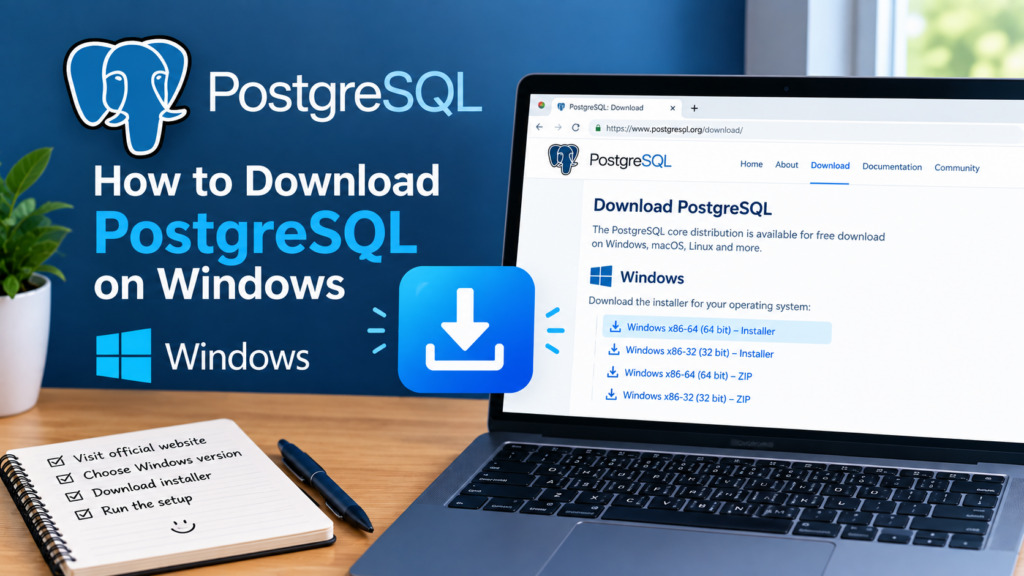
The first step is to obtain the PostgreSQL installer from a trusted source. Avoid downloading database software from unknown websites because unofficial installers may contain unwanted software or outdated files.
You can download postgreSQL from the official postgreSQL website before starting the installation process .
When selecting an installer, pay attention to your operating system and system architecture. Many modern Windows computers use 64-bit architecture, but older systems may have different requirements.
After downloading the installer, locate the downloaded setup file and run it to begin the installation process.
Installing PostgreSQL on Windows: Step-by-Step
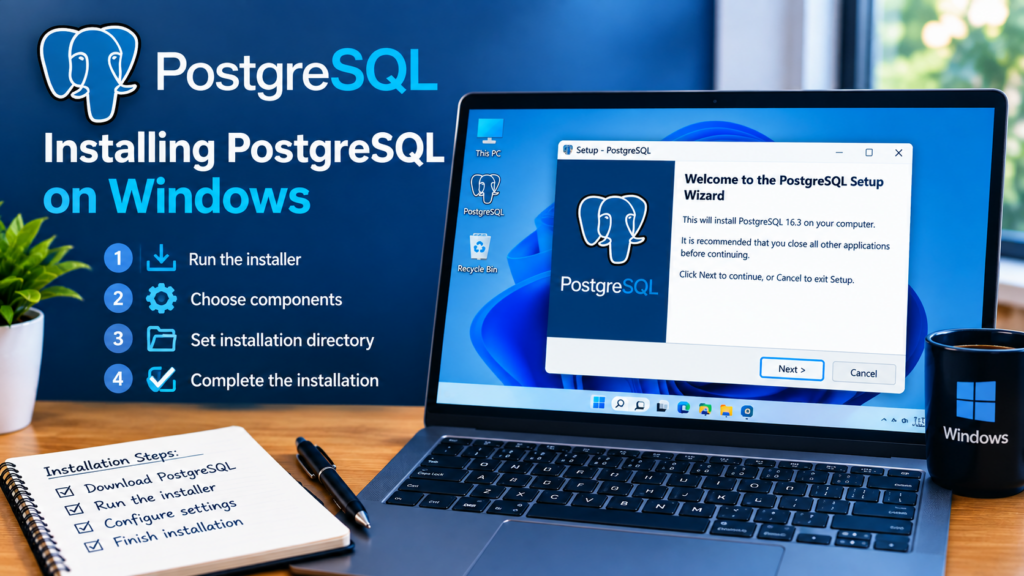
The PostgreSQL installer normally provides a guided setup process. Beginners can follow the instructions shown on the screen and keep the recommended settings unless they have a specific reason to change them.
The first part of the installation process usually involves selecting the installation directory. This is the location where PostgreSQL and its related files will be stored.
If you do not have a specific requirement, the default installation location is generally sufficient.
Selecting Components
During the setup process, you may be asked which components you want to install.
Depending on the installer, these may include the PostgreSQL database server, graphical management tools, command-line tools, and additional components.
For beginners, installing the main database server and commonly provided management tools can make learning easier.
A graphical interface can be helpful when you are not yet comfortable working entirely from the command line.
Setting the Database Password
One of the important steps during installation is creating a password for the PostgreSQL database administrator account.
Choose a strong password that you can remember but that is not easy for another person to guess.
Do not use simple passwords such as your name, date of birth, or common number combinations.
The administrator password is important because it may be required when connecting to the PostgreSQL server or performing administrative tasks.
It is also a good idea to keep your database credentials private.
Choosing the Server Port
PostgreSQL uses a network port to communicate with applications and database clients.
During installation, you may see a default port number provided by the installer. Unless another application is already using that port or you have a specific configuration requirement, beginners can generally keep the default setting.
If you change the port, remember the new value because applications connecting to the database may need to use it.
Selecting the Locale
The installer may also ask you to choose a locale.
A locale can affect how certain types of data are handled, including sorting and formatting.
For a basic learning environment, the default locale is usually sufficient. Advanced users may choose a different configuration depending on their application requirements.
Completing the Installation
After reviewing the selected options, continue with the installation.
The installer will copy the required files and configure the PostgreSQL database server. The process may take several minutes depending on your computer.
Once the installation has finished, you should receive a confirmation message.
At this point, PostgreSQL should be installed on your Windows computer.
Installing PostgreSQL on Windows: Connecting to the Database
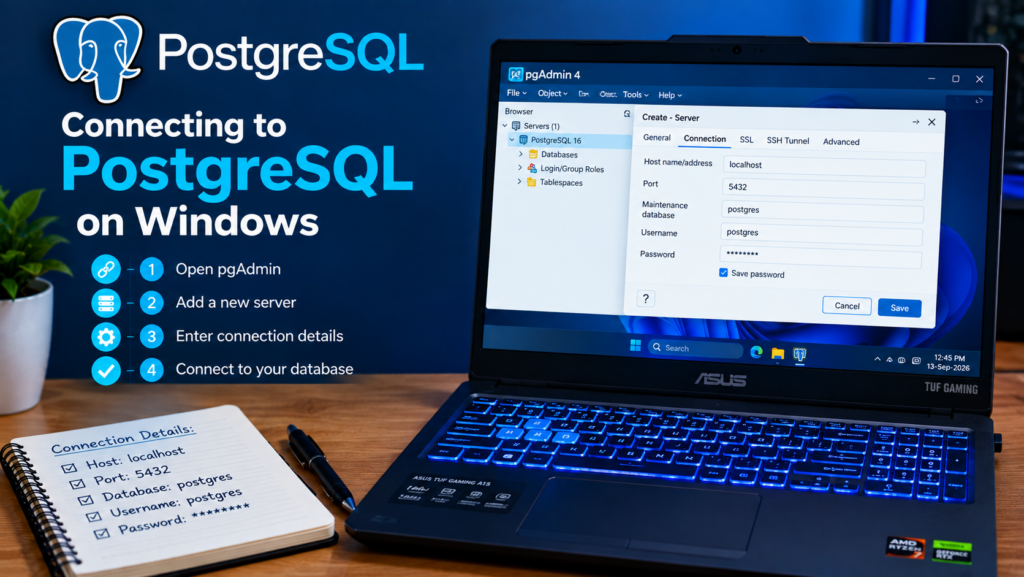
After installation, you can connect to the PostgreSQL server using available database tools.
Many beginners prefer using a graphical database management tool because it provides an easier way to create databases, tables, and queries.
You can also use command-line tools if you want to become more familiar with working directly with the database server.
When connecting, you may need information such as:
- Server or host name
- Port number
- Database name
- Username
- Password
For a local installation, the server is commonly running on the same computer.
Creating Your First Database
Once you successfully connect to PostgreSQL, you can create your first database.
A database acts as a container for related data and database objects.
For example, a student learning database management might create a database for storing information about students, courses, marks, or attendance.
After creating a database, you can create tables inside it.
A table consists of rows and columns. Each column represents a particular type of information, while each row represents an individual record.
For example, a student table might contain columns such as:
- Student ID
- Name
- Course
- Age
This simple structure can help beginners understand how relational databases organize information.
Learning Basic SQL
After successfully setting up PostgreSQL, the next step is to learn basic SQL.
SQL, or Structured Query Language, is used to communicate with relational databases.
Some of the most important commands for beginners include:
SELECT — used to retrieve data.
INSERT — used to add new records.
UPDATE — used to modify existing records.
DELETE — used to remove records.
CREATE TABLE — used to create a new table.
ALTER TABLE — used to modify the structure of a table.
Learning these commands provides a strong foundation for working with relational databases.
Common Problems During Installation
Although the installation process is usually straightforward, beginners may sometimes experience problems.
One common issue is choosing an installer that is not compatible with the Windows version being used. Checking compatibility before downloading can help prevent this problem.
Another possible issue is a port conflict. If another service is already using the selected PostgreSQL port, the database server may not start correctly.
Incorrect passwords can also cause connection problems. If you forget the administrator password, recovering access may require additional configuration or administrative steps.
Insufficient permissions can create another problem. If Windows prevents the installer from making changes, you may need appropriate administrator permissions.
Security Tips
Security should not be ignored even when PostgreSQL is being used for learning.
Use a strong password for database accounts and avoid sharing credentials with other people.
If PostgreSQL is installed only for local development, there is usually no reason to expose the database server unnecessarily to the public internet.
Keep your software updated when appropriate and download installers and updates from trusted sources.
You should also avoid running unknown SQL scripts without understanding what they do, especially when working with important data.
PostgreSQL for Beginners
PostgreSQL can seem complicated at first because it has many features. Beginners should not try to learn everything at once.
A good learning path is to start with database concepts, then learn basic SQL commands, followed by table relationships, primary keys, foreign keys, joins, indexes, and transactions.
Once the basics are comfortable, you can move on to more advanced PostgreSQL features.
Practicing with small projects is often more effective than only reading theoretical material.
For example, you could create a simple student management database or a small inventory system. These projects can help you understand how tables and queries work together. If you are installing PostgreSQL on Windows for the first time, regular practice with SQL can help you build a strong foundation in database management.
Final Thoughts
Installing PostgreSQL on Windows is a useful first step for anyone interested in learning SQL, database management, or software development. The installation process involves several configuration choices, but beginners can usually complete the setup by following the installer carefully and using compatible settings.
Before downloading PostgreSQL, always check your Windows version and the requirements of the particular release you plan to install. After the installation is complete, start with simple SQL commands and gradually work toward more advanced database concepts.
With regular practice, PostgreSQL can become a valuable tool for learning relational databases and developing real-world applications.